IDLE Press Arcade Utilities
Audience: IDLE Press Arcade Operators
Overview
The IDLE Press Utilities app provides Video Calibration and Input Testing tools that are useful for calibrating and debugging hardware on the arcade cabinet Ubuntu PC.
Installation
- Download the latest version of the IDLE Press Utilities app
- Extract the .zip and move the
idleutilitiesfolder into the/home/userfolder so that the path is/home/user/idleutilities
Launching The App
Mouse
The easy way to launch the app is to double-click the idleutilities.x86_64 app using the mouse.
Keyboard
Since you may not always have a mouse available in the cabinet, here’s how to launch the app using just a keyboard.
Open the Terminal using Ctrl + Alt + T and then run:
/home/user/idleutilities/idleutilities.x86_64
In-App Keyboard Navigation
The IDLE Press Utilities UI is designed to work with keyboard navigation so that you don’t also need to keep a mouse in the cabinet.
Because the app is keyboard-first, using a mouse in the app may lead to unexpected results. For example if Input Testing is selected in the UI but you try to mouse-click on About, the Input Testing tool will open. Just move the mouse pointer off screen and use the keyboard.
Use the keyboard arrow keys to navigate menus, enter to select, escape key to exit the current screen. Alt + F4 will exit the app from any screen.
Input Testing
The Input Testing tool allows you to check the operation of the primary 28 header inputs on the IPAC-2 control interface.
- Joystick: right/left/up/down
- Switches: 1SW1 thru 1SW8, 2SW1 thru 2SW2, 1STRT, 2COIN, 2STRT, 2COIN
Switches 1A, 1B, 2A, 2B and not currently listed in the UI since they are MAME specific inputs (they can be added in an update if needed). Spinners and trackballs are also not currently supported.
IPAC-2 Default Key Mappings
The Input Testing tool has been configured to use the default IPAC-2 key mappings. If you modify the defaults (see note below), the utilities app will need to be modified as well.
Default IPAC-2 key mappings:
| Player 1 Input | Keyboard | Player 2 Input | Keyboard |
|---|---|---|---|
| 1RIGHT | → | 2RIGHT | g |
| 1LEFT | ← | 2LEFT | d |
| 1UP | ↑ | 2UP | r |
| 1DOWN | ↓ | 2DOWN | f |
| 1SW1 | left-control | 2SW1 | a |
| 1SW2 | left-alt | 2SW2 | s |
| 1SW3 | spacebar | 2SW3 | q |
| 1SW4 | left-shift | 2SW4 | w |
| 1SW5 | z | 2SW5 | i |
| 1SW6 | x | 2SW6 | k |
| 1SW7 | c | 2SW7 | 7 |
| 1SW8 | v | 2SW8 | l |
| 1STRT | 1 | 2STRT | 2 |
| 1COIN | 5 | 2COIN | 6 |
| 1A | p | 2A | tab |
| 1B | enter | 2B | enter |
I had issues with 1SW1 being mapped to left-control in my MacOS game as the OS wasn’t allowing other inputs to be read while left-control is held. If the same issue occurs in the Ubuntu OS, then 1SW1 may need to be configured using the WinIPAC Configuration Utility. The IDLE Press Utilities app would also need to be updated to support the modified config. This limitation may be something that can be addressed in a future release. Alternatively you could just use a different header other than 1SW1.
Editing Switch Names
The default names in the Input Testing tool match the header names on the IPAC-2 (like 1SW1 etc) which could be confusing when testing inputs on the floor. Names can be edited to match the game’s inputs.
Editing switch input names is an exception the note above about the app being “keyboard first”. You have to use a mouse when editing the names.
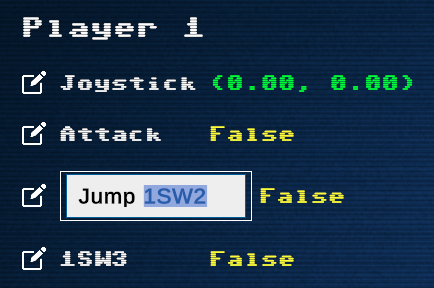
To edit switch names:
- Click the pencil icon next to each entry
- Click into the input field and edit the name using the keyboard
- Press enter or click-off to save the name, names are saved using PlayerPrefs so they are persistent between sessions.
Mouse click the “Reset Names” button in the upper right to restore default names. There is no warning, so be careful.
Once you start editing names the escape keyboard button won’t work to exit, exit back to the main menu with mouse click.
You can also use HTML elements to style in the input names like:
// color
<color=green>Jump</color>
<color=red>Attack!</color>

// italic
<i>Italic text</i>

// bold
<b>Bold text</b>

// combine elements
<color=#fb8500>orange text<i>orange italic text</i></color>

// other HTML elements probably work too, feel free to experiment!
Future Updates
Add spinner and trackball support. Add support for changing IPAC-2 key mappings
Video Calibration
The Video Calibration tool is useful for adjusting various settings on the monitor. This feature would typically be used when initially setting up the cabinet.